1 + 45Python consists of the Python programming language, a Python interpreter (a program that interprets and runs Python code), and an extensive standard library.
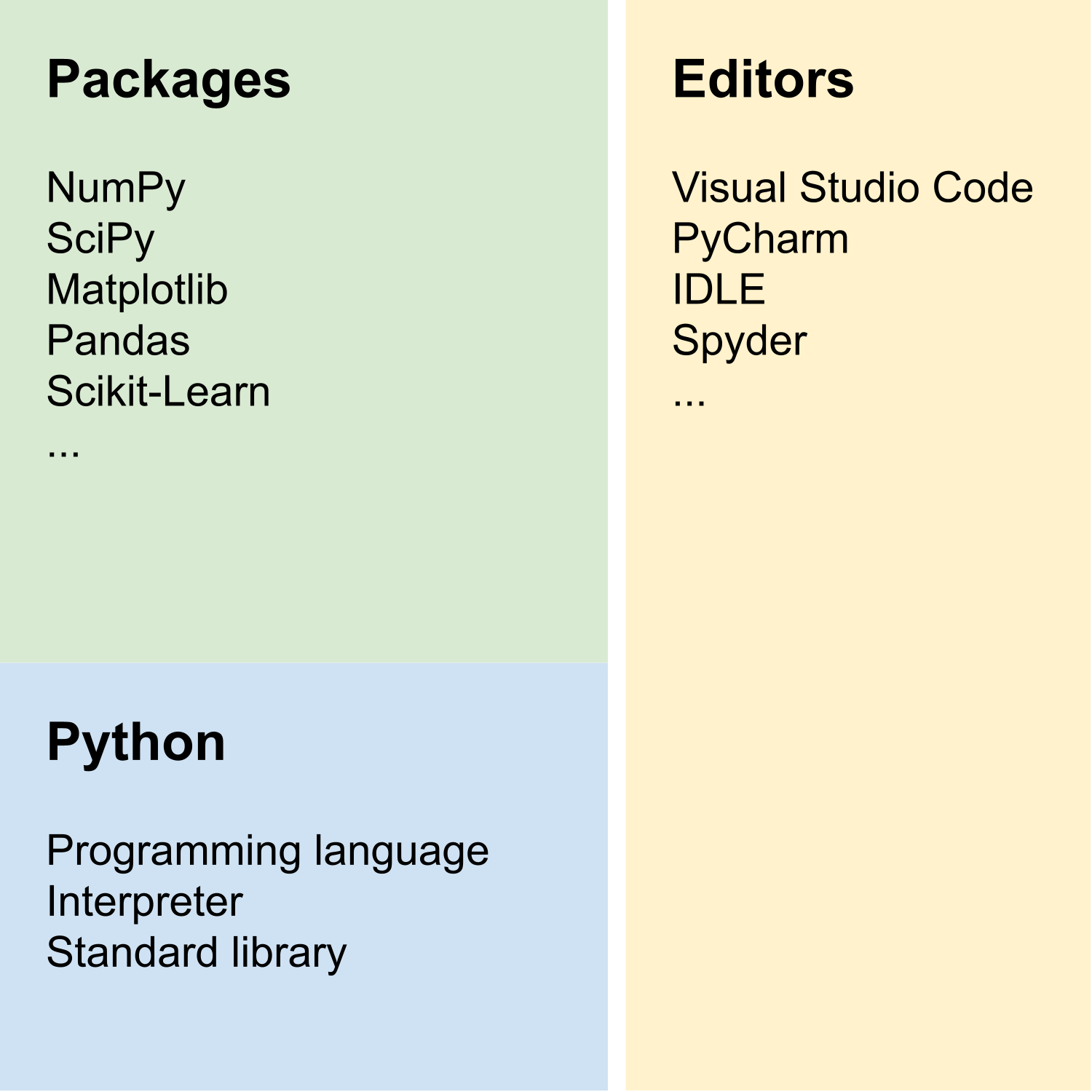
The Python programming language includes only relatively few keywords and built-in functions. However, the standard library extends the core functionality with additional data types, input/output, regular expressions, mathematical functions, data compression, networking, multimedia services, graphical user interfaces, and much more. The standard library is part of any Python installation, so it is always available at your fingertips.
In the previous chapter, we used import math to access mathematical functions and constants from the math module (which is part of the standard library). Importing is necessary before we can use things contained in any module.
Python can be further extended with third-party packages that are not part of the official Python distribution. Installing these packages is straightforward, because they are available from a central repository called the Python Packaging Index (PyPI). We will discuss how to install, update, and uninstall third-party packages later in this chapter.
As for any programming language, a code editor or integrated development environment (IDE) is an essential tool for writing Python code. Good code editors include support for syntax highlighting, indentation, line numbers, linting, code inspection, and more. We will use IDLE in this course, which is included in the official Python installers. IDLE is a very simple IDE, which is ideal for anyone who is just getting started with Python. However, you might want to switch to a more advanced code editor, such as Visual Studio Code or PyCharm, as you become more proficient with Python.
After starting IDLE, you will see a window with a Python shell (also called the interactive interpreter):
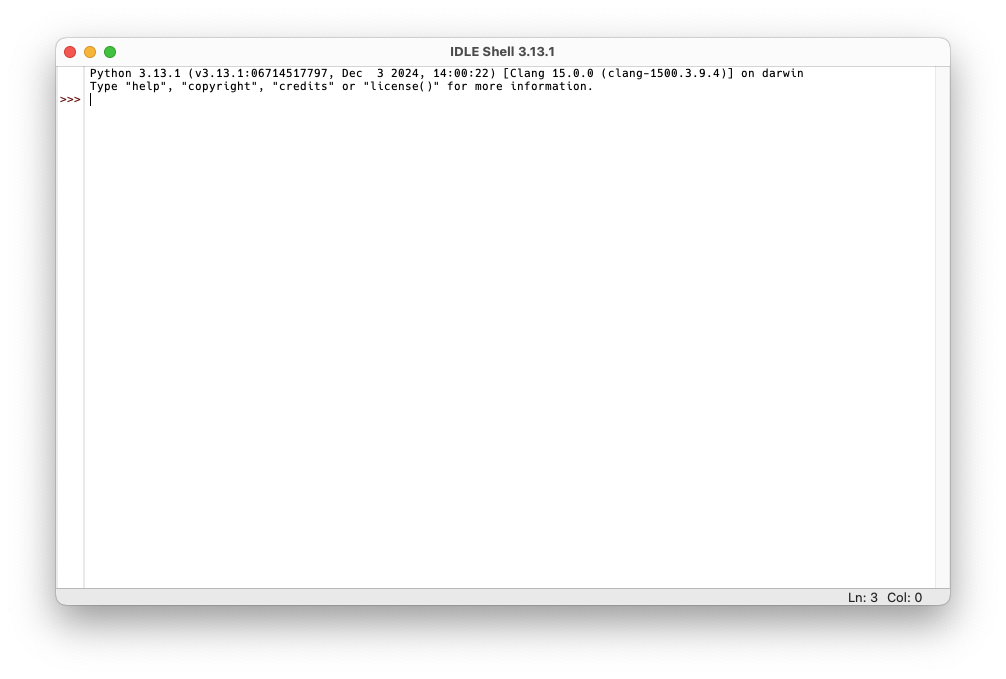
In the previous chapter, we used the interactive interpreter directly from the terminal, but we can also use IDLE to run Python code interactively. The interactive interpreter is a great tool for testing small code snippets, for example to check the result of a calculation or to experiment with a new function. However, the interactive interpreter does not save your code. If you restart it, everything you typed in a previous session is lost, because you will always start with a clean slate.
To save your code, you need to write it to a text file with the file extension .py (such files are also called Python scripts). IDLE provides a text editor for creating, writing, and modifying Python scripts, which can then be executed by the Python interpreter:
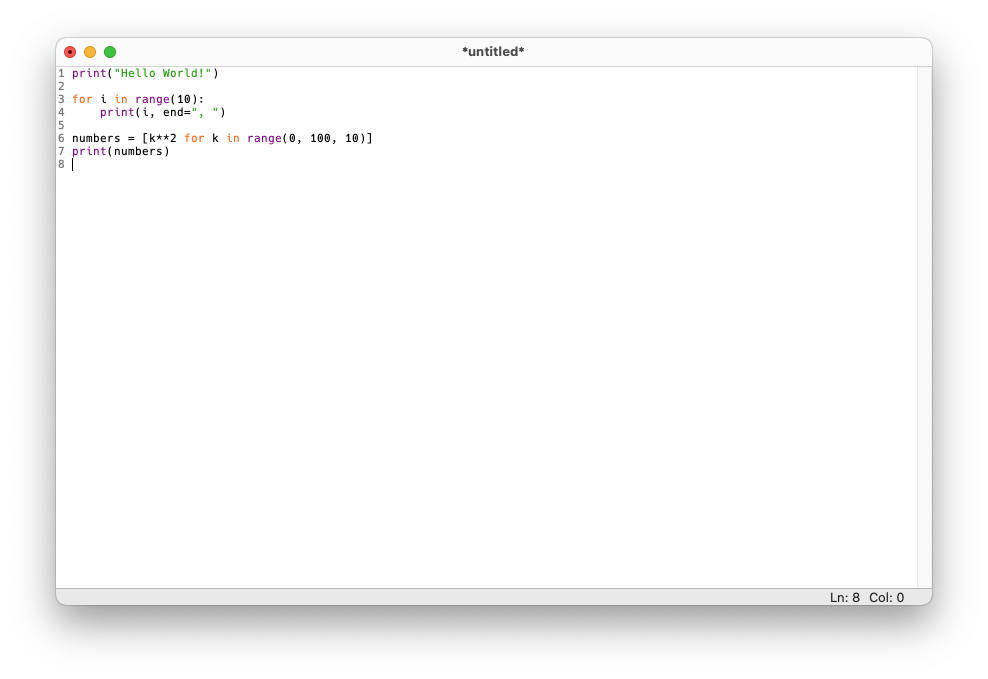
To create a new script, select “File” > “New File” from the menu. You can then write your Python code in the editor and save it to a file with the .py extension. To run the entire script, select “Run” > “Run Module” from the menu. The output of the script will be displayed in the interactive interpreter.
One of the most important activities when programming is reading documentation. Besides querying your favorite web search engine or AI assistant, the Python interpreter can display short help texts for many Python commands. For example, to view the documentation for the print function, you can type help(print) in the Python interpreter.
Almost any real-world project requires functionality that is not available in Python out of the box. Therefore, it is important to know how to install additional third-party packages. You might also want to uninstall packages that you don’t need anymore to keep your environment clean and save some disk space. It is also a good idea to keep all installed packages up to date, as package maintainers regularly fix bugs and add new features.
All of these tasks can be performed with the pip command line tool, which is bundled with the Python installation. To use it, we need to open a terminal:
On macOS, the command line tool is called pip3 instead of pip (just like we use python3 instead of python to invoke the Python interpreter).
A terminal is a program that runs a shell, which interprets text commands to interact with the operating system.
Note that pip is not a Python command, so make sure to enter pip commands in the shell and not in the Python interpreter! Usually, the prompt is a good indicator of where to enter commands. As a rule of thumb, if the prompt ends with a $ or >, you are in the shell. If the prompt ends with >>>, you are in the Python interpreter.
Let’s test if we can successfully run the pip tool. In a terminal, type:
pip --versionThis command should display the pip version (for example, 23.3.1) and its location in the file system. If this results in an error message, something is wrong with your Python installation (in this case, consult the installation instructions to fix the problem).
It is useful to know which Python packages are already installed. We can use the following command to find out:
pip listThis will print a list of installed packages, including their names and versions. If you have just installed Python, this list will only contain a few entries (usually just pip).
Before installing a new package, we need to know the name of the package. You can query the PyPI website to find a specific package. You can then install that package as follows (replace <package_name> with the actual name):
pip install <package_name>It is also straightforward to uninstall a package:
pip uninstall <package_name>Finally, you can get a list of outdated packages:
pip list --outdatedIf this command shows packages that have newer versions available, you can upgrade each individual package with:
pip install --upgrade <package_name>As you get more proficient with Python, you might want to create a virtual environment for each project. This allows you to install packages for each project in separate isolated environments, which avoids conflicts between different projects. However, this is a slightly advanced topic and not necessary for this introductory course.
The Python interpreter behaves slightly differently depending on how it is used, namely interactively or running an entire script.
The interactive mode is useful for executing single lines of code, because Python immediately shows the result. We have already encountered this mode before when we used Python as a calculator. To recap, interactive mode features a prompt (>>>), which indicates that Python is ready and waiting for user input. Importantly, Python also displays the results of calculations automatically in interactive mode. For example:
1 + 45The result 5 is displayed automatically right after the command. In general, if you start Python by typing python on the command line, Python will start in interactive mode.
You can exit the interactive interpreter by typing exit (or alternatively CtrlD on macOS or Linux).
In contrast to interactive mode, Python can run many lines of code in one go using script mode. As we already know, a Python script is a plain text file (ending in .py) containing Python code. In general, one line contains exactly one code statement. Compared to interactive mode, Python does not display results automatically. For example, let’s assume that a Python script named test.py contains the following line:
1 + 4When we run this script with python test.py from the command line, Python executes all commands line by line, but it does not automatically show the results. Therefore, there will be no output when running this script. However, you can always explicitly print something on the screen with the print function (more on functions later), so in this example script we could write print(1 + 4) instead.
Let’s return to the Python programming language and in particular its syntax (which describes the rules and structure of code statements). One of the most unique features of Python is that it uses significant whitespace (in almost all cases this means spaces) for grouping code into blocks. This results in fewer lines of code and therefore less visual noise, because no special grouping symbols (such as begin or end) are needed.
Consider the following example code snippet:
# this is a comment
def do_something(n_times=10):
    counter = 0
    for i in range(n_times):
        print(i)
        if i % 2:  # odd number
            counter += 1
            print("Odd")
    return counter

counter = do_something()
print(counter)It is not important to understand what this code is doing at this point as we only want to focus on its structure!
First, we notice that line 1 starts with a # character. This line is a comment, and Python ignores everything from the # character to the end of the line. This means that we can use comments to explain portions of the code in plain English (or whatever natural language you like to use). Line 6 also contains a comment, but this time directly after a statement.
Lines 3–9 are indented (which means shifted to the right). By convention, most Pythonistas1 use four spaces to denote one level of indentation. Indented lines of code belong together. For example, lines 3–9 below def do_something(n_times=10): define a block of code belonging to that def statement (note that statements introducing a block always end with a colon). Within this block, there are two additional blocks defined by additional indentation (lines 5–8 and lines 7–8, respectively).
Blocks are necessary to define scopes, something which we will discuss later in this course.
Finally, the example contains function calls. We will discuss functions in detail later in this course, but for now you can think of a function as a mini-script. Whenever you call a function, Python runs the whole mini-script defined by the function. The syntax for calling a function is a pair of parenthesis () right after the function name. In the example code, range(n_times), print(i), print("Odd"), do_something(), and print(counter) are all function calls. Note that you can supply so-called arguments between the parentheses if the function takes parameters. All function calls in the example have exactly one argument, except for do_something(), which has no argument. Arguments allow us to pass additional information to the function (but again, more on functions later).
Like most programming languages, Python is very picky about correct syntax. For example, capitalization matters, so print is not the same as Print. A missing : in places where a colon should be triggers a syntax error. Incorrect indentation can either lead to a syntax error or to non-intended behavior (which means the Python program runs without errors, but does not do what the programmer intended). It is very instructive to try out invalid code in the interactive interpreter, for example:
Print("Hello")--------------------------------------------------------------------------- NameError Traceback (most recent call last) Cell In[2], line 1 ----> 1 Print("Hello") NameError: name 'Print' is not defined
It is important to be familiar with Python error messages to interpret them correctly and efficiently (after all, the goal should be to fix them), so make errors and learn from them!
There are also stylistic issues that Python does not care about at all. The following three statements are equivalent for Python:
x = 1 + 2 + 3 * (16 - 7)
x=1+    2+  3*  (   16-7    )
x=1+2+3*(16-7)
Arguably, the first statement is much easier to read than the other two. The Python Enhancement Proposal 8 (PEP8) summarizes coding conventions that describe how Python code should look like to enhance readability. There are automated tools that reformat Python code according to PEP8 (such as Ruff), but we will not use them in this course. However, it is still a good idea to follow PEP8 as closely as possible, because it makes your code more readable and understandable for others (and for yourself in the future).
Here are a few Python resources for beginners that might be helpful after completing this course.
Create a list of installed packages in your Python environment.
Update all installed packages. Find out if numpy is installed, and if not, install this packages.
Install the mne package. Afterwards, uninstall it again. What happens to the dependencies of the mne package when you uninstall it?
Create a short Python script called test.py with the following contents:
print function to print something on the screen.Make sure that the code is formatted according to PEP8!
Display the documentation for the print function in the interactive Python interpreter.
 This document is licensed under the CC BY-NC-SA 4.0 by Clemens Brunner.
People using Python↩︎